Writing a Programmers Editor (Terminal I/O & Raw Mode) - Part 5


Edited on: August 15, 2026
In Part 4 we built a line management layer and a viewport renderer. But that renderer only returns strings - it never actually paints anything on a screen. To turn those strings into an interactive display, we have to talk to the terminal itself. And the terminal, it turns out, is a far stranger beast than it first appears.
A Teletype In Disguise
The word terminal is a fossil. It descends directly from the teletype - a physical machine, a keyboard bolted to a printer, that sent characters over a wire and printed the response on a roll of paper. There was no screen. There was no cursor to move around. You typed a line, pressed return, and the machine transmitted it.
Modern terminal emulators - xterm, iTerm, Alacritty, the terminal inside your editor -
are elaborate pretenders. They emulate a device that has not existed in decades. And every
quirk of that ancient device still leaks through. When you understand why the terminal
behaves the way it does, its rules stop feeling arbitrary.
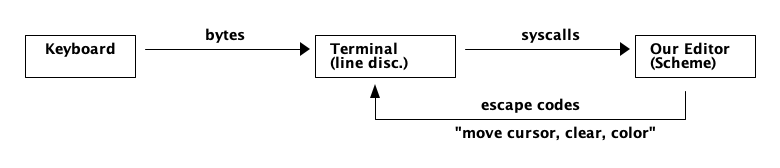
Figure 1: The terminal sits between the keyboard and our program, and speaks back in escape codes.
Cooked Mode vs Raw Mode
By default, a terminal runs in what is called cooked mode (or canonical mode). In this mode the kernel's terminal driver - the line discipline - sits between the keyboard and your program and does a great deal of helpful work on your behalf:
- It buffers input a line at a time. Your program sees nothing until the user presses return.
- It handles backspace, so the user can correct typos before you ever see the input.
- It echoes typed characters to the screen automatically.
- It intercepts
Ctrl-C,Ctrl-Z, andCtrl-Dand turns them into signals.
For a shell command this is exactly what you want. For an editor it is a disaster. We want
every keystroke the instant it happens. When the user presses the up arrow, we want to
react immediately - not wait for a return that never comes. We want Ctrl-C to be a
command we bind, not a signal that kills us. We want to draw the screen ourselves, so
automatic echo is noise.
To get all of this, we switch the terminal into raw mode.
The termios Struct
Terminal behaviour is controlled by a C structure called termios. It holds four flag
fields - input flags, output flags, control flags, and local flags - plus an array of
control characters. Switching to raw mode means clearing a specific set of bits, then
installing the modified struct with tcsetattr.
The canonical recipe (straight out of the cfmakeraw manual page) is:
- Clear
ECHOso keystrokes are not printed automatically. - Clear
ICANONso input is delivered byte-by-byte instead of line-by-line. - Clear
ISIGsoCtrl-C/Ctrl-Zarrive as bytes, not signals. - Clear
IXONsoCtrl-S/Ctrl-Qflow control is disabled. - Clear
OPOSTso the terminal stops translating\ninto\r\nfor us. - Set
VMINto 1 andVTIMEto 0 so a read returns as soon as one byte is available.
The catch: our editor is written in Scheme, and tcgetattr / tcsetattr live in the C
library. We need a bridge.
Crossing Into C: The FFI
This is the moment the thesis from Part 1 gets its first real test. We promised an editor
with 100% power in Scheme - but the terminal is a hardware abstraction owned by the
operating system, and the only door into it is C. Every language that talks to a terminal,
including emacs, crosses this boundary. The Foreign Function Interface (FFI) is how a
high-level language reaches down and calls C.
In Chicken Scheme, the FFI is delightfully direct - you can embed C right in your Scheme source:
(import (chicken foreign))

;; Pull in the termios header so the C snippets below can see the struct.
(foreign-declare "#include <termios.h>")
(foreign-declare "#include <unistd.h>")

;; Grab the current terminal attributes into a freshly malloc'd termios,
;; returning an opaque pointer we can hand back later to restore state.
(define get-termios
  (foreign-lambda* c-pointer ()
    "struct termios* t = malloc(sizeof(struct termios));
     tcgetattr(STDIN_FILENO, t);
     C_return(t);"))

;; Restore a previously-saved termios (called on exit).
(define set-termios
  (foreign-lambda* void ((c-pointer t))
    "tcsetattr(STDIN_FILENO, TCSAFLUSH, (struct termios*) t);"))
Now the interesting part - flipping the bits that put us into raw mode:
;; Take a saved termios, clear the cooked-mode flags, and install it.
(define enable-raw-mode
  (foreign-lambda* void ((c-pointer saved))
    "struct termios raw = *(struct termios*) saved;
     raw.c_iflag &= ~(BRKINT | ICRNL | INPCK | ISTRIP | IXON);
     raw.c_oflag &= ~(OPOST);
     raw.c_cflag |=  (CS8);
     raw.c_lflag &= ~(ECHO | ICANON | IEXTEN | ISIG);
     raw.c_cc[VMIN]  = 1;
     raw.c_cc[VTIME] = 0;
     tcsetattr(STDIN_FILENO, TCSAFLUSH, &raw);"))
With those three procedures we can wrap our whole editing session. Save the original state, go raw, do our work, and - crucially - always restore the terminal when we are done. A terminal left in raw mode is a broken terminal: no echo, no line editing, nothing works. This is the single most common way to render a shell unusable while writing an editor.
;; Run `thunk` with the terminal in raw mode, restoring state no matter what.
(define (with-raw-terminal thunk)
  (let ((saved (get-termios)))
    (dynamic-wind
      (lambda () (enable-raw-mode saved))   ; before
      thunk                                 ; during
      (lambda () (set-termios saved)))))    ; after - even on error
The dynamic-wind here is doing heavy lifting. If the body throws an exception, if the user
hits an error, if a quit command unwinds the stack - the after thunk still runs and the
terminal is handed back the way we found it. This is the Scheme equivalent of C's
"restore-on-exit" discipline, but far harder to forget.
Reading A Keystroke
In raw mode, reading input is trivial: one byte at a time, no buffering, no waiting.
;; Read a single character. Returns #f on EOF.
(define (read-key)
  (let ((c (read-char)))
    (if (eof-object? c) #f c)))
But there is a subtlety. Special keys - the arrow keys, Home, End, Page Up - do not send a
single byte. They send an escape sequence: the escape character (\e, byte 27) followed
by [ and one or more bytes. Pressing the up arrow sends the three bytes \e [ A. So a
robust read-key must peek after an escape to decode these:
;; Read a key, decoding common escape sequences into symbols.
(define (read-key)
  (let ((c (read-char)))
    (cond
     ((eof-object? c) #f)
     ((char=? c #\escape)
      ;; Could be a bare Esc, or the start of a sequence.
      (let ((a (read-char)))
        (if (and (char? a) (char=? a #\[))
            (case (read-char)
              ((#\A) 'up)
              ((#\B) 'down)
              ((#\C) 'right)
              ((#\D) 'left)
              ((#\H) 'home)
              ((#\F) 'end)
              (else  'escape))
            'escape)))
     (else c))))
This is the same trick every terminal editor uses. There is no magic "arrow key" event - there is only a stream of bytes, and an agreed-upon convention for interpreting them. We will build a proper key-parser on top of this in Part 6.
Talking Back: Escape Sequences
Reading is only half the conversation. To draw the screen we send our own escape
sequences back to the terminal. These are commands, encoded as text, that the terminal
interprets rather than prints. They all begin with the Control Sequence Introducer - the
two bytes \e[.
;; Write a raw string straight to the terminal, no newline translation.
(define (term-write s) (display s) (flush-output))

(define (clear-screen)     (term-write "\x1b[2J"))   ; erase entire screen
(define (cursor-home)      (term-write "\x1b[H"))    ; move cursor to 1,1
(define (hide-cursor)      (term-write "\x1b[?25l"))
(define (show-cursor)      (term-write "\x1b[?25h"))

;; Move the cursor to (row, col) - terminals are 1-indexed here.
(define (cursor-to row col)
  (term-write (string-append "\x1b[" (number->string row)
                             ";" (number->string col) "H")))

;; Set foreground colour using the 256-colour palette.
(define (set-fg-color n)
  (term-write (string-append "\x1b[38;5;" (number->string n) "m")))

(define (reset-attrs) (term-write "\x1b[0m"))
That handful of sequences is enough to build a full-screen display. \e[2J wipes the
screen, \e[H parks the cursor at the top-left, and \e[row;colH positions it anywhere.
Colour is just \e[38;5;Nm. Everything a text editor draws is some combination of these.
Finding The Window Size
One last piece: our renderer in Part 4 needed rows and cols. The terminal knows its own
size, and we ask for it with the TIOCGWINSZ ioctl:
;; Query the terminal window size as (values rows cols).
(define get-window-size
  (foreign-lambda* void ((c-pointer out-rows) (c-pointer out-cols))
    "struct winsize ws;
     ioctl(STDOUT_FILENO, TIOCGWINSZ, &ws);
     *((int*) out-rows) = ws.ws_row;
     *((int*) out-cols) = ws.ws_col;"))
With size in hand, we can finally connect the renderer from Part 4 to the real screen: ask the terminal how big it is, render that many rows from the buffer, position the cursor, and flush. The strings that used to vanish into a list now light up a display.
What We Have Now
The editor can now see and speak. We have:
- Raw mode - every keystroke arrives instantly, unbuffered, un-echoed.
- Guaranteed restoration -
with-raw-terminalhands the terminal back cleanly. - Key reading - bytes and escape sequences decoded into usable events.
- Screen control - clear, position, colour, and window-size queries.
This is the canvas. Every future part paints on it. But right now we are reading raw keys
and reacting to them ad-hoc. That does not scale. An editor needs a systematic way to map a
key - or a sequence of keys like C-x C-f - to a command.
In the next part we will design the keymap: the data structure that gives an editor its personality, and the reason emacs feels nothing like vim even though both push the same bytes down the same wire.
Watchout for the next part of the assay, till then.
Shorel'aran
Writing a Programmer's Editor
A series of assays on building a programmable text editor from scratch in Scheme - exploring the balance of power between the C runtime and the scripting language, data structures, terminal I/O, and extensibility.
- 1 Writing a Programmers Editor - Part 1 2018-08-06
- 2 Writing a Programmers Editor (DS/Gapbuffer) - Part 2 2018-08-11
- 3 Writing a Programmers Editor (Gap Buffer in Scheme) - Part 3 2018-08-18
- 4 Writing a Programmers Editor (Lines & Display) - Part 4 2018-08-25
- 5 Writing a Programmers Editor (Terminal I/O & Raw Mode) - Part 5 Here 2018-09-01
- 6 Writing a Programmers Editor (Keymaps & Input Handling) - Part 6 2018-09-08
- 7 Writing a Programmers Editor (Rendering & Redisplay) - Part 7 2018-09-15
- 8 Writing a Programmers Editor (Search & Replace) - Part 8 2018-09-22
- 9 Writing a Programmers Editor (Syntax Highlighting) - Part 9 2018-09-29
- 10 Writing a Programmers Editor (Undo/Redo & Command Log) - Part 10 2018-10-06
- 11 Writing a Programmers Editor (Modes & Extensibility) - Part 11 2018-10-13
- 12 Writing a Programmers Editor (Reflections & Lessons) - Part 12 2018-10-20
Responses